Switch 2 Pro Controller Test
The Switch 2 Pro Controller test runs a full diagnostic on Nintendo's second-generation Pro pad in the browser — checking analog sticks for drift, the B A Y X face buttons, new C button, GL/GR rear buttons, improved HD Rumble, gyroscope, and digital triggers. Connect over Bluetooth or USB-C, press any button, and get a Controller Health Score graded S through F.
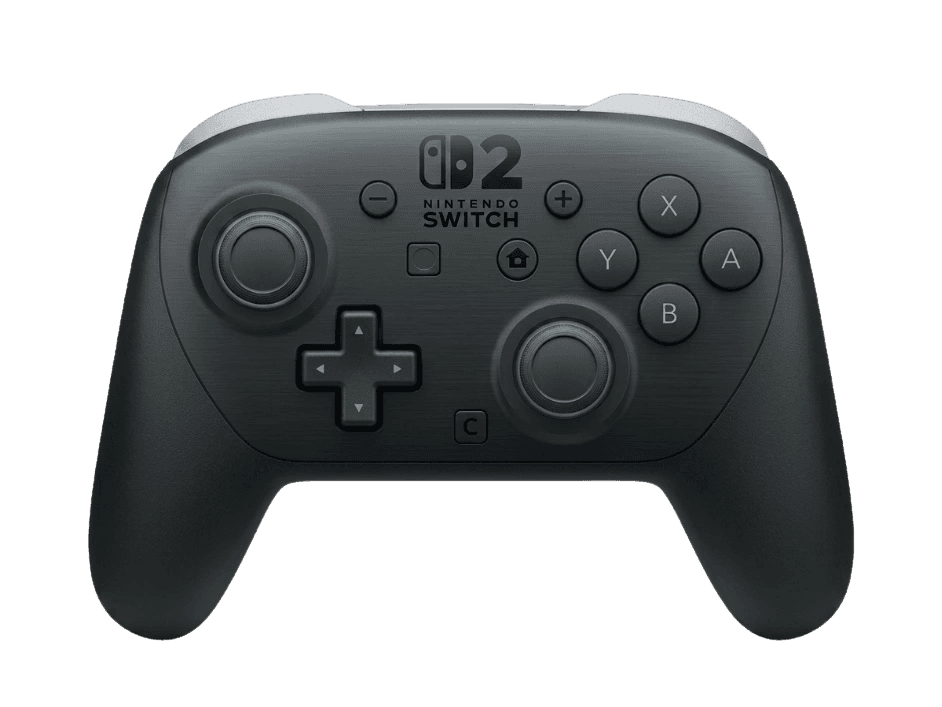
Full Switch 2 Pro diagnostic
The Controller Benchmark runs every relevant subsystem on your Switch 2 Pro — drift on the refined sticks, button response (including the new C, GL, and GR buttons), 8-way D-pad, HD Rumble, gyroscope, and latency — then produces a composite Controller Health Score. Nintendo did not switch to Hall-effect for the new model, so periodic drift testing is still recommended.
Switch 2 Pro Controller hardware specifications
| Specification | Switch 2 Pro Controller |
|---|---|
| Connection | USB-C, Bluetooth |
| Button count | 21 |
| Analog stick type | Potentiometer (susceptible to drift) |
| Gyroscope | Yes |
| Rumble / haptics | Haptic (voice-coil / LRA) |
| Impulse triggers | No |
| Adaptive triggers | No |
| Touchpad | No |
| Built-in microphone | No |
| Built-in speaker | No |
| Back paddles | Yes |
| Battery life | ~40 hours |
| Weight | 248 g |
| Release year | 2025 |
| MSRP | $79.99 USD |
Recommended tests for Switch 2 Pro Controller
Each test runs in your browser via the Gamepad API — no install, no account, no upload. Run any individually, or use the full benchmark above.
Stick Drift Test
Detect unwanted analog input at rest
Deadzone Test
Measure your stick’s deadzone radius
Button Test
Check every button responds instantly
Circularity Test
Visualize stick travel as a circle
Snapback Test
Measure how fast sticks return to center
Gyro Test
Test 6-axis motion sensors
Vibration Test
Test both rumble motors independently
Latency Test
Measure input lag in milliseconds
Known Switch 2 Pro Controller issues
Recurring problems users report with this controller, ranked by frequency. Each links to a step-by-step fix guide.
- Common
Stick drift (still potentiometer-based)
Despite redesigned, quieter stick modules, the Switch 2 Pro Controller still uses potentiometers — not Hall-effect or TMR. Drift is expected to develop on the same long-term failure curve as the original Pro Controller (18–24 months under regular use), just with smoother feel in the meantime.
View fix guide - Rare
C button stuck or unresponsive
The new C button sits between the right stick and D-pad — a high-use position. Early reports suggest the smaller dome switch can become inconsistent after heavy use. The button test exposes it as a standard Gamepad API button on the Switch 2 mapping.
View fix guide - Common
GL/GR rear buttons need profile remapping
Rear GL/GR buttons default to no assignment out of the box. You must map them via the Switch 2 system menu (hold Home for a few seconds) before they trigger any input — confusing users who expect them to work like Xbox Elite paddles immediately.
View fix guide - Occasional
Won't pair with PC over Bluetooth
Like the original Switch Pro, the Switch 2 Pro uses a non-standard Bluetooth HID descriptor that confuses some Windows builds. Steam Input handles it; raw Windows pairing is more fragile. The C button and GL/GR may not map cleanly outside the Switch 2.
View fix guide - Occasional
Headphone jack picks up controller noise
Some users report faint electrical interference through the new 3.5mm headphone jack when the controller is charging via USB-C. Disconnect USB during gameplay to verify — wireless-only operation typically eliminates the noise.
View fix guide
How to pair the Switch 2 Pro Controller
Get your controller connected before running diagnostics — wired or wireless, mobile or desktop.
Power off the controller
If a Home button LED is lit, the controller is on. Hold the small Sync button on the top edge for 5 seconds to fully unpair from the current host.
Press the Sync button
On the top edge between L and R, press the small Sync button. The four player-indicator LEDs on the front start scrolling — pairing mode is active.
Open your device's Bluetooth menu
Windows: Settings → Bluetooth & devices → Add device → Bluetooth. macOS: System Settings → Bluetooth. Steam Deck: Settings → Bluetooth. The controller appears as "Pro Controller" (the Switch 2 version is not differentiated in Bluetooth name).
Select Pro Controller
Tap or click the entry. The LED scrolling stops once paired, and a single player-indicator LED stays on. C button, GL, and GR may show as unmapped buttons outside the Switch 2 ecosystem.
Press any button to confirm in the browser
Browsers gate gamepad access behind a user gesture. Press any button to expose the controller to the Gamepad API. Face buttons are labeled B A Y X as printed on the hardware.
Switch 2 Pro Controller vs the competition
Head-to-head reviews against the other controllers most buyers cross-shop.
- vs
Original Switch Pro Controller
Switch 2 Pro adds C button (GameChat), GL/GR rear buttons, 3.5mm jack, and refined sticks — but still no Hall-effect. Original Pro works on Switch 2 via backwards compatibility.
- vs
8BitDo Ultimate 2 Bluetooth
8BitDo Ultimate 2 has TMR sticks (more advanced than Hall-effect), comparable feature set, and broader platform compatibility at a similar price.
- vs
Switch 2 Joy-Cons
Switch 2 Joy-Cons add mouse mode and detach for two-player; Switch 2 Pro is one ergonomic pad with longer battery and remappable rear buttons.
Switch 2 Pro Controller questions
No. Despite years of community pressure following Joy-Con drift, Nintendo did not move to Hall-effect or TMR sensors in the Switch 2 Pro Controller. The sticks are redesigned for smoother feel and reduced noise, but they remain potentiometer-based — meaning drift is still the controller's most likely long-term failure mode, just on a slower timeline than the original.
The C button opens GameChat — Nintendo's built-in voice and screen-share overlay for Switch 2. Press it from any game to invite friends to chat, share your screen, or join an existing call. Outside the Switch 2, browsers and other hosts see it as a standard Gamepad API button with no special function.
Yes — that's the whole point of them. Hold the Home button for a few seconds to enter the button-mapping menu, then assign GL and GR to any other button input. Out of the box they have no assignment, which surprises users expecting them to work like Xbox Elite paddles immediately.
No. Switch 2 Pro Controller triggers (ZL and ZR) are digital — pressed or not pressed, no 0.0–1.0 axis like Xbox or PS5 triggers. This is the same behavior as the original Pro Controller and is intentional per Nintendo's design. It limits PC game compatibility for racing or shooter games that expect pressure-sensitive triggers.
Backwards compatibility goes one direction only — Switch 2 Pro Controllers are designed for Switch 2 and may not pair reliably with the original Switch console. Original Switch Pro Controllers DO work on Switch 2 via the Switch 2's compatibility mode (without the new C/GL/GR functionality).
Some users report faint electrical interference through the 3.5mm jack when the controller is charging via USB-C simultaneously. Disconnect USB during gameplay and the noise typically disappears. If it persists wireless-only, contact Nintendo support — likely a hardware defect within warranty.
Partially. Bluetooth pairing works through Steam Input cleanly. Outside Steam, native Windows pairing is fragile (same as the original Pro). The C button, GL, and GR appear as standard gamepad buttons but without their Switch 2-specific functions. Digital triggers may cause compatibility issues with racing games expecting analog values.
Nintendo specifies up to 40 hours on a full charge — same as the original Pro Controller despite the added hardware (C button, rear buttons, headphone jack). Real-world battery life with mixed HD Rumble runs 25–35 hours. Charging from empty takes 4–6 hours via the included USB-C cable.
Get a full health report for your Switch 2 Pro Controller
Run the Controller Benchmark to score every subsystem and generate a shareable Controller Health Score graded S through F.
Run the Benchmark