Controller Button Test - free gamepad button checker
Use this controller button test to see presses, releases, held states, and nearby repeat presses. Connect a supported gamepad, then check each button on the diagram. Labels vary by controller mapping. A flagged input is a reason to repeat the check, not proof of a broken switch.
Check each press and release
Connect your controller
Plug in your controller via USB, or pair it via Bluetooth. Press any button to wake the controller - browsers require this before exposing gamepad input for privacy reasons.
Check for stuck buttons on load
When the test loads, scan the button grid. Any button highlighted amber without you touching the controller is stuck. Stuck buttons cause unintended in-game actions and need cleaning or repair.
Press every button once
Systematically press each button on your controller. The cell lights up violet while pressed and shifts to emerald once the button has been verified. Press counts appear under each label.
Watch for double-presses
If a single press registers as two events within 300 milliseconds, a fuchsia dot appears on that button. This indicates worn switch contacts and is a sign the button needs replacement.
Verify completion
When all 17 standard buttons have been pressed at least once, a completion banner confirms no stuck or missing inputs. Use the Reset button to run the test again.
What the colors mean
Each button cell in the test changes color to communicate its current state. Match the colors you see to the meanings below.
| State | Visual | What It Means |
|---|---|---|
| Untested | Default | Button has not been pressed yet during this test session. |
| Pressed | Violet glow | Button is currently being pressed and registering correctly. |
| Held | Amber highlight | Button has been pressed for over 500ms - possibly stuck if you are not touching it. |
| Tested | Emerald tint | Button has been verified with at least one clean press and release. |
| Double-press | Fuchsia dot | Single physical press registered as two events - switch contacts are likely worn. |
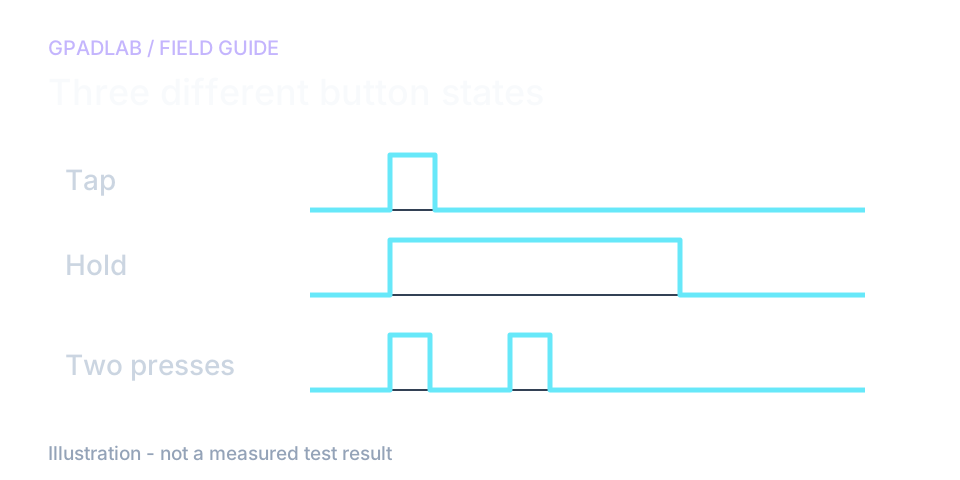
A double press is not always a broken switch
Repeat a missed input on its own
Press the suspect button slowly five times, releasing it fully each time. Watch the press count as well as the highlighted button. A missed press that repeats is worth checking in another app.
The tester sees browser button states. A very brief press between samples may be missed. A long hold is not proof that the button is stuck.
Check labels before judging the result
Xbox, PlayStation, and Nintendo use different face-button names. Check which on-screen button reacts to each physical press. A remapping app can change what this page receives.
If one press appears twice, repeat with deliberate pauses. The tool flags closely spaced presses; it cannot tell whether you meant to tap twice or whether a switch bounced.
Compatible devices
The button test automatically detects your platform and displays correct button labels (A/B/X/Y for Xbox, Cross/Circle/Square/Triangle for PlayStation, Nintendo-style for Switch). Device guides below can help with setup. Confirm support on your browser and connection before interpreting results.
Button repair guides
Related diagnostics
Button questions
Connect your controller via USB or Bluetooth, open this page, and press every button at least once. Our test reads each button input via the Gamepad API and visually confirms each press. If a button does not light up when you press it, the button has failed and needs repair or replacement.
First check whether the button registers in another app and whether a profile has remapped it. A repeated failure may need model-specific support. The browser cannot tell whether dirt, a contact, a cable, or another part caused the problem.
A stuck button is a button that registers as continuously pressed without any user input. In our test, a stuck button shows as held (amber highlight) immediately on page load. Stuck buttons cause unintended actions in games - like a character running indefinitely or weapons firing on their own.
A double-press is when a single physical press registers as two button events within 300 milliseconds. This is caused by switch bounce - the internal contact briefly opens and closes when pressed. Common in worn controllers and a sign that the button switch needs replacement. Our test highlights buttons with a fuchsia dot when this is detected.
Any controller recognized as a standard gamepad by your operating system. This includes PlayStation DualSense, DualSense Edge, DualShock 4, Xbox Series X/S, Xbox One, Xbox Elite Series 2, Nintendo Switch Pro Controller, Joy-Con, and third-party brands like 8BitDo, Scuf, Razer, and Nacon. The test automatically detects your platform and uses the correct button labels (A/B/X/Y, Cross/Circle/Square/Triangle, or Nintendo-style).
The test checks all 17 buttons defined in the Standard Gamepad mapping: four face buttons, four shoulder buttons (two bumpers and two triggers reported as digital), two stick clicks, four d-pad directions, two menu buttons (back/select and start), and one platform button (Xbox/PS/Home). Specialty controllers with extra buttons like the Xbox Elite or Scuf are tested up to the standard 17.
Nintendo Switch controllers physically label their face buttons in a different layout than Xbox or PlayStation. The "B" button is in the bottom position (like Xbox's "A"), and "A" is on the right (like Xbox's "B"). Our test labels them exactly as they appear on the physical controller, not as the index numbers might suggest.
Yes, in most cases. Cleaning resolves about half of all button failures. For mechanical failures, replacement membranes and rubber domes cost $5-15 and require basic disassembly skills. For ribbon cable or PCB damage, professional repair is recommended. Replacement controllers cost $50-200 depending on the model, so repair is usually worthwhile.
How we test buttons
The page reads button states using the standard gamepad mapping. It tracks presses, releases, held states, and nearby repeat presses. Labels are chosen from the controller ID. A held or repeated state is an observation, not proof of a switch fault. Brief inputs between browser samples may be missed.Dedicated methodology article not yet published; see the methodology hub for the methods currently available.
Run the GPADLAB Controller Health Score
The Controller Benchmark combines six core diagnostic stages into GPADLAB's site-defined composite score. Use the stage breakdown for diagnosis and the score for repeat comparison.
Run the Benchmark