8BitDo Ultimate Controller Test
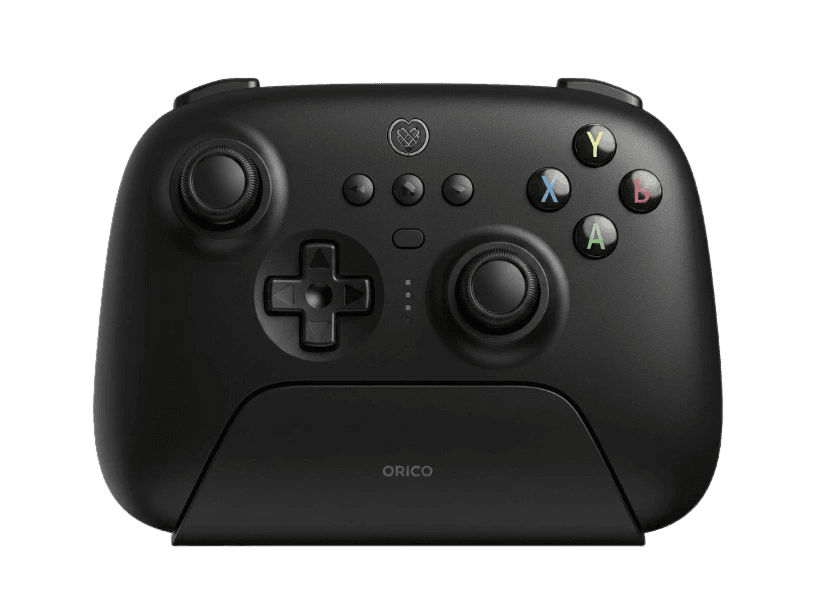
The 8BitDo Ultimate controller test runs a full diagnostic on 8BitDo's Hall-effect flagship in the browser — verifying the drift-resistant analog sticks, two back paddles, triggers, rumble, and gyroscope. Connect over Bluetooth, the included 2.4GHz dongle, or USB-C, press any button, and get a Controller Health Score graded S through F.
Full 8BitDo Ultimate diagnostic
The Controller Benchmark runs every relevant subsystem on your 8BitDo Ultimate — Hall-effect sticks, deadzone, button response, back paddles, trigger range, rumble, latency, and connection stability — then produces a composite Controller Health Score. Hall-effect sticks should test exceptionally clean for drift; if they don't, the magnet alignment may need attention.
8BitDo Ultimate hardware specifications
| Specification | 8BitDo Ultimate |
|---|---|
| Connection | USB-C, Bluetooth, 2.4GHz Wireless Dongle |
| Button count | 19 |
| Analog stick type | Hall-effect (drift-resistant) |
| Gyroscope | Yes |
| Rumble / haptics | ERM motors (standard rumble) |
| Impulse triggers | No |
| Adaptive triggers | No |
| Touchpad | No |
| Built-in microphone | No |
| Built-in speaker | No |
| Back paddles | Yes |
| Battery life | ~22 hours |
| Weight | 228 g |
| Release year | 2022 |
| MSRP | $49.99 USD |
Recommended tests for 8BitDo Ultimate
Each test runs in your browser via the Gamepad API — no install, no account, no upload. Run any individually, or use the full benchmark above.
Stick Drift Test
Detect unwanted analog input at rest
Deadzone Test
Measure your stick’s deadzone radius
Hall Effect Checker
Identify Hall Effect vs potentiometer sticks
Trigger Pressure
Verify full analog range on triggers
Button Test
Check every button responds instantly
Circularity Test
Visualize stick travel as a circle
Vibration Test
Test both rumble motors independently
Polling Rate
Measure inputs reported per second
Known 8BitDo Ultimate issues
Recurring problems users report with this controller, ranked by frequency. Each links to a step-by-step fix guide.
- Occasional
Bluetooth pairing fails on first connect
The 8BitDo Ultimate boots into the mode it was last used in (Switch, Android, Windows, etc.). If you switch hosts, you may need to hold the Pair button + a specific face button combo to change modes before pairing succeeds. The 8BitDo Ultimate Software documents the combos.
View fix guide - Occasional
Charging dock doesn't recognize the controller
The dock's pogo pin contacts can develop oxidation or get dust contamination, breaking the charge handshake. Clean both the dock contacts and the controller-side contacts with isopropyl alcohol; the controller should re-recognize within seconds.
View fix guide - Common
Back paddles register as duplicates by default
Out of the box, the two back paddles are unassigned and produce no input. Install the 8BitDo Ultimate Software (PC, Android, or iOS) and assign each paddle to a button to start using them.
View fix guide - Occasional
Not recognized as a Switch controller
The Ultimate uses a proprietary HID descriptor that Switch OS rejects at the kernel level unless the controller is explicitly in Switch mode. Mode-switch the controller (Start + Y on Switch mode) before connecting to a Switch — this is a hardware-level constraint, not a firmware issue.
View fix guide - Rare
Rumble feels weaker than expected
The Ultimate uses standard ERM rumble motors (not voice-coil haptics like DualSense). The rumble is functional but less nuanced than first-party flagship controllers. Verify intensity scales correctly via the vibration test — if it's stuck at one level, the motor connector may have come loose.
View fix guide
How to pair the 8BitDo Ultimate
Get your controller connected before running diagnostics — wired or wireless, mobile or desktop.
Choose your connection mode
The Ultimate switches between three modes via button combos: Bluetooth (Start + Y), Switch (Start + B), and 2.4GHz dongle (use the included dongle in any USB-A port). Use Bluetooth or 2.4GHz for browser testing.
Hold the Pair button on the back
On the back of the controller, between the paddles, there's a small Pair button. Hold it for about three seconds until the player LEDs start flashing rapidly — pairing mode is active.
Open Bluetooth or plug in the dongle
For Bluetooth: open your device's Bluetooth menu and look for "8BitDo Ultimate". For 2.4GHz: plug the included USB-A dongle into your computer — pairing is pre-bound and reconnects automatically.
Select the controller to pair
On Bluetooth, tap or click the entry. The LEDs stop flashing once paired. On 2.4GHz, no selection needed — the dongle reconnects instantly when the controller is removed from the dock.
Press any button to confirm in the browser
Browsers gate gamepad access behind a user gesture. Press any button to expose the controller to the Gamepad API. The Ultimate uses Xbox-style face button labels (A B X Y) by default.
8BitDo Ultimate vs the competition
Head-to-head reviews against the other controllers most buyers cross-shop.
- vs
PS5 DualSense
DualSense has haptics and adaptive triggers; 8BitDo Ultimate has Hall-effect sticks (no drift) at a third the price.
- vs
Xbox Series X|S Controller
Xbox controller is more premium in hand; 8BitDo Ultimate adds Hall-effect sticks, back paddles, and a charging dock at lower cost.
- vs
8BitDo Pro 2
Pro 2 is the retro-styled Switch-and-everything controller (SNES layout); Ultimate is the modern Xbox-style layout with back paddles.
8BitDo Ultimate definitions
Plain-language definitions for the terms used on this page. Each links to the full glossary entry with thresholds, mechanism, and FAQs.
8BitDo Ultimate questions
The Ultimate uses Hall-effect sensors instead of mechanical potentiometers. Hall-effect reads stick position via magnetic field strength rather than physical carbon contact, eliminating the wear mechanism that causes drift on DualSense, Xbox, and Joy-Con controllers. In lab tests, Hall-effect sticks maintain ±0.1% accuracy after 1 million actuations versus ±0.8% for potentiometers.
Yes, but only if you have the Bluetooth+dock variant (not the 2.4G-only model) and the controller is set to Switch mode via Start + B. The Ultimate's proprietary HID descriptor is rejected by Switch OS at the kernel level outside Switch mode — this is a hardware constraint, not fixable via firmware update.
Yes — that's exactly what the Hall-effect checker test does. Hall-effect sticks produce smoother continuous values with no contact-bounce noise; potentiometer sticks show characteristic micro-jitter even when stationary. The checker analyzes the noise signature over a sampling window and flags the technology type.
Bluetooth SIG specifications cap HID device polling at 125Hz (8ms interval) — this affects every Bluetooth controller, not just 8BitDo. To get higher polling rates (250Hz or 500Hz on the Ultimate), use the included 2.4GHz dongle or wired USB-C. The polling rate test will show this difference clearly.
The 2.4G model uses only its proprietary 2.4GHz dongle (no Bluetooth radio); it's lighter and slightly cheaper but doesn't work with Switch or mobile devices. The Bluetooth model adds both Bluetooth and the 2.4GHz dongle plus a charging dock — the more versatile choice, and what most reviews refer to as 'the 8BitDo Ultimate'.
Install the 8BitDo Ultimate Software on Windows, Android, or iOS, then connect the controller via USB-C (Windows) or Bluetooth (mobile). The software exposes per-profile paddle assignments — any button on the controller can be mapped to either paddle. Profiles are saved to the controller's onboard memory and persist across hosts.
Yes for the Bluetooth variant — iOS 16 and later recognize it as a standard Bluetooth gamepad with no driver installation. The 8BitDo Ultimate Software for iOS lets you remap buttons and update firmware over-the-air. Some games may not recognize back paddles without explicit support.
Yes. The dock has pogo pin contacts that align with contacts on the controller's bottom. When docked, the controller powers off automatically and starts charging; when undocked, it powers on and reconnects to its last-paired host instantly. Charge time from empty is approximately 2.5 hours.
Get a full health report for your 8BitDo Ultimate
Run the Controller Benchmark to score every subsystem and generate a shareable Controller Health Score graded S through F.
Run the Benchmark