SCUF Envision Pro Controller Test
The SCUF Envision Pro test runs a full diagnostic on SCUF's PC-first flagship in your browser — verifying the anti-drift Hall-effect sticks, OMRON mechanical buttons, five G-Keys, back paddles, and instant triggers. Connect over Slipstream wireless or USB-C, press any button, and get a Controller Health Score graded S through F.
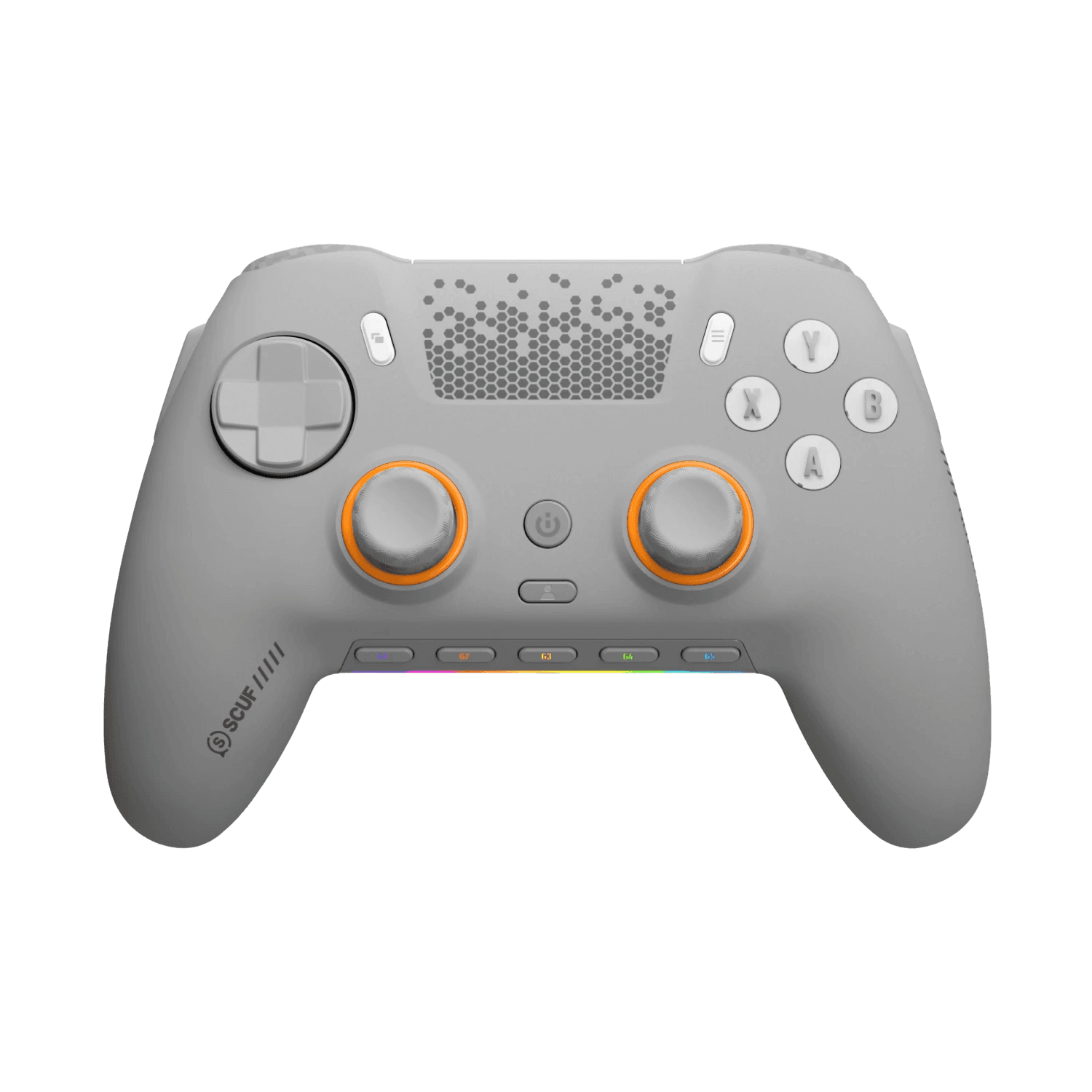
Full SCUF Envision Pro diagnostic
The Controller Benchmark runs every subsystem on your Envision Pro — Hall sticks, deadzone, OMRON button response, G-Keys, back paddles, instant trigger range, rumble, latency, and connection stability — then produces a composite Controller Health Score. The endurance Hall sticks should test exceptionally clean for drift; fine-tune stick and trigger curves afterward in iCUE.
SCUF Envision Pro hardware specifications
| Specification | SCUF Envision Pro |
|---|---|
| Connection | 2.4GHz Wireless Dongle, USB-C |
| Button count | 21 |
| Analog stick type | Hall-effect (drift-resistant) |
| Gyroscope | No |
| Rumble / haptics | ERM motors (standard rumble) |
| Impulse triggers | No |
| Adaptive triggers | No |
| Touchpad | No |
| Built-in microphone | No |
| Built-in speaker | No |
| Back paddles | Yes |
| Battery life | ~20 hours |
| Weight | 290 g |
| Release year | 2025 |
| MSRP | $179.99 USD |
Recommended tests for SCUF Envision Pro
Each test runs in your browser via the Gamepad API — no install, no account, no upload. Run any individually, or use the full benchmark above.
Stick Drift Test
Detect unwanted analog input at rest
Deadzone Test
Measure your stick’s deadzone radius
Hall Effect Checker
Identify Hall Effect vs potentiometer sticks
Trigger Pressure
Verify full analog range on triggers
Button Test
Check every button responds instantly
Vibration Test
Test both rumble motors independently
Latency Test
Measure input lag in milliseconds
Polling Rate
Measure inputs reported per second
Known SCUF Envision Pro issues
Recurring problems users report with this controller, ranked by frequency. Each links to a step-by-step fix guide.
- Common
PC-only — no console support
Unlike most SCUF controllers, the Envision Pro is PC-only (Windows). It is not licensed for Xbox or PlayStation. For console SCUFs, look at the Instinct (Xbox) or Omega/Reflex (PlayStation) lines.
View fix guide - Occasional
iCUE required for full customization
The controller works plug-and-play for basic use, but unlocking macros, extra profiles, RGB, and full remapping needs Corsair's iCUE software installed. If advanced features aren't available, confirm iCUE is installed and updated.
View fix guide - Occasional
Instant Trigger mode confusion
Instant Triggers switch each trigger between a short mouse-click press and full analog travel. A trigger that suddenly feels too short is likely set to instant/click mode — toggle it back to full range for analog input like throttle control.
View fix guide
How to pair the SCUF Envision Pro
Get your controller connected before running diagnostics — wired or wireless, mobile or desktop.
Slipstream wireless for lowest latency
Plug the SCUF Slipstream USB dongle into your PC for a low-latency wireless connection. The Envision Pro connects automatically.
Or connect wired over USB-C
Use a USB-C cable for a wired connection and charging — useful for the most consistent latency or to top up the battery while playing.
Install iCUE for full control
Install Corsair iCUE to remap the G-Keys, paddles, and side buttons, build macros, tune stick and trigger curves, customize RGB, and save additional profiles beyond the three on-board slots.
Press any button to confirm in the browser
Browsers gate gamepad access behind a user gesture. Press any button on the Envision Pro to expose it to the Gamepad API, then run the benchmark or any individual test.
SCUF Envision Pro vs the competition
Head-to-head reviews against the other controllers most buyers cross-shop.
- vs
SCUF Instinct Pro
The Instinct Pro is SCUF's Xbox-licensed flagship; the Envision Pro is the PC-only counterpart, trading console support for more remappable inputs, OMRON buttons, and Slipstream wireless.
- vs
Razer Wolverine V3 Pro
Both are premium controllers with mechanical face buttons; the Wolverine V3 Pro is Xbox-licensed, while the Envision Pro is PC-focused with G-Keys and deep iCUE integration.
- vs
Xbox Elite Series 2
The Elite Series 2 is the first-party premium standard with potentiometer sticks; the Envision Pro counters with anti-drift Hall sticks, OMRON buttons, and far more mappable inputs for PC players.
SCUF Envision Pro definitions
Plain-language definitions for the terms used on this page. Each links to the full glossary entry with thresholds, mechanism, and FAQs.
SCUF Envision Pro questions
No. The Envision Pro is PC-only (Windows). Unlike most SCUF controllers it isn't console-licensed — that choice let SCUF add more remappable inputs and Slipstream wireless without console certification limits.
Yes. It uses SCUF's Endurance Hall-effect (anti-drift) thumbsticks, which read position via magnetic field rather than carbon contact, resisting the drift that wears out potentiometer sticks.
Five fully remappable buttons you can map to any keyboard or controller function — from simple shortcuts to advanced macros via iCUE. They're a PC-gaming-focused addition on top of the standard back paddles.
iCUE is required for initial setup and to unlock full customization — macros, extra profiles, RGB, and remapping. The controller works for basic play without it, but its advanced features live in iCUE.
Adjustable triggers that switch between a short, mouse-like click for fast FPS shots and a full analog range for throttle or brake control. You pick the behavior per trigger to match your game.
SCUF uses OMRON mechanical switches for the ABXY face buttons and D-pad on the Envision Pro, giving crisp, audible, responsive clicks that are more durable than membrane buttons.
Three on-board profiles you can switch between with a button press, plus more saved through iCUE on your PC — handy for keeping separate setups for your favorite games.
Get a full health report for your SCUF Envision Pro
Run the Controller Benchmark to score every subsystem and generate a shareable Controller Health Score graded S through F.
Run the Benchmark