Xbox One Controller Test
The Xbox One controller test runs a full diagnostic on Microsoft's Xbox One generation controllers in your browser — verifying analog stick drift, button response, impulse trigger range, and rumble. Connect over Bluetooth (model 1708) or USB cable (all models), press any button, and get a Controller Health Score graded S through F.
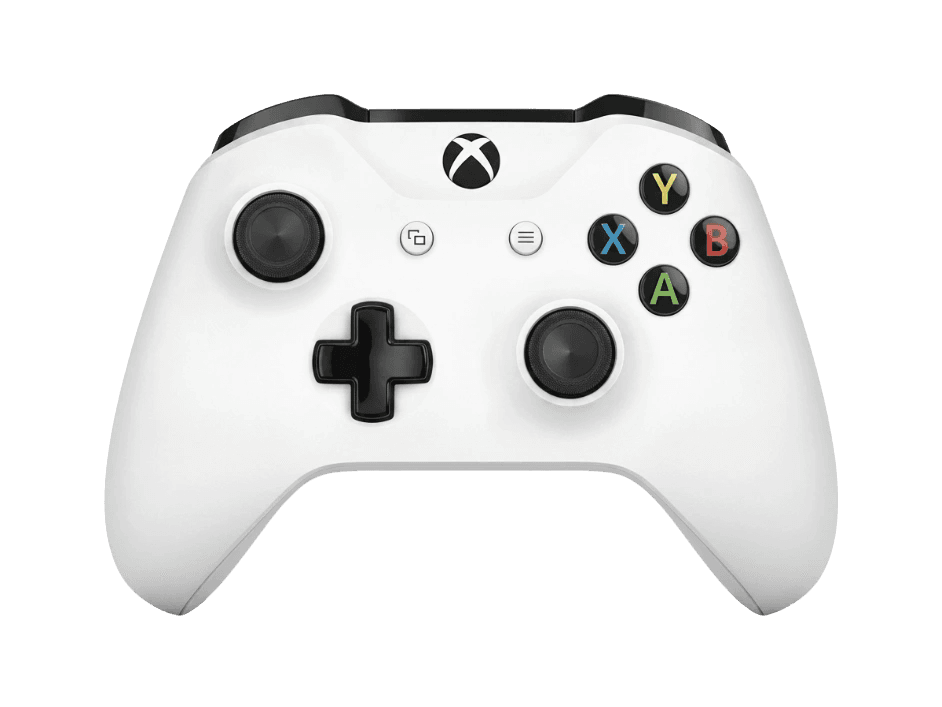
Full Xbox One controller diagnostic
The Controller Benchmark runs every relevant subsystem on your Xbox One controller — stick drift, deadzone, button response, impulse trigger range, rumble, latency, and connection stability — then produces a composite Controller Health Score. Drift is the most-reported Xbox One controller issue; the stick drift test catches it whether it's mild or severe.
Xbox One Controller hardware specifications
| Specification | Xbox One Controller |
|---|---|
| Connection | USB-A, Bluetooth, Proprietary Wireless |
| Button count | 16 |
| Analog stick type | Potentiometer (susceptible to drift) |
| Gyroscope | No |
| Rumble / haptics | ERM motors (standard rumble) |
| Impulse triggers | Yes |
| Adaptive triggers | No |
| Touchpad | No |
| Built-in microphone | No |
| Built-in speaker | No |
| Back paddles | No |
| Battery life | ~40 hours |
| Weight | 280 g |
| Release year | 2013 |
| MSRP | $59.99 USD |
Recommended tests for Xbox One Controller
Each test runs in your browser via the Gamepad API — no install, no account, no upload. Run any individually, or use the full benchmark above.
Stick Drift Test
Detect unwanted analog input at rest
Deadzone Test
Measure your stick’s deadzone radius
Button Test
Check every button responds instantly
Trigger Pressure
Verify full analog range on triggers
Vibration Test
Test both rumble motors independently
Circularity Test
Visualize stick travel as a circle
Latency Test
Measure input lag in milliseconds
Polling Rate
Measure inputs reported per second
Known Xbox One Controller drift
Recurring problems users report with this controller, ranked by frequency. Each links to a step-by-step fix guide.
- Common
Stick drift on the left analog
Xbox One controllers use potentiometer-based sticks that wear with use. Drift typically develops 18–30 months in, with the left stick failing earlier than the right because movement gets used more than camera. Microsoft repair under warranty is rare past the first year; aftermarket Hall-effect modules are the durable fix.
View fix guide - Occasional
Bumper button cracks at the pivot
The LB/RB bumpers on Models 1537 and 1697 are particularly fragile — the plastic pivot underneath the bumper can crack from firm presses, especially in fighting games and rhythm games. Model 1708 uses a redesigned bumper assembly that's noticeably more durable. Replacement bumper modules cost $5–10 from third-party repair shops.
View fix guide - Common
Won't pair with PC over Bluetooth
Only Model 1708 supports Bluetooth pairing on PC. If your controller doesn't have Bluetooth (Models 1537 and 1697), you need either the Xbox Wireless Adapter for Windows, a USB cable connection, or Steam Input handling the controller over a wireless dongle. Check the battery compartment label — it lists the model number.
View fix guide - Occasional
Battery drain when sitting unused
Xbox One controllers with the optional Play & Charge battery pack installed can drain their internal Li-ion battery noticeably faster when the controller sits idle for weeks. AA-battery use doesn't show this pattern. The fix: remove the rechargeable battery from controllers sitting unused for extended periods, or swap to AA batteries for long storage.
View fix guide - Occasional
Headphone jack stops outputting audio
The 3.5mm jack on Models 1697 and 1708 can fail after repeated headset plug/unplug cycles. Often the jack contacts get dirty rather than physically broken — a cotton swab with isopropyl alcohol applied inside the jack hole, with the controller off, restores most cases. Persistent failures require jack module replacement.
View fix guide
How to pair the Xbox One Controller
Get your controller connected before running diagnostics — wired or wireless, mobile or desktop.
Check your model number first
Open the battery compartment on the back of the controller. The model number is printed on the label inside. If it reads 1537 or 1697, your controller does not support Bluetooth — skip to step 5 for wired connection. If it reads 1708, continue with Bluetooth pairing.
Hold the Pair button on top
On the top edge of the controller, near the Micro-USB port, there's a small Pair button. Press and hold it for about 3 seconds — the Xbox button on the front starts pulsing rapidly, indicating pairing mode is active.
Open your device's Bluetooth menu
On Windows: Settings → Bluetooth & devices → Add device → Bluetooth. On macOS: System Settings → Bluetooth. The controller appears as "Xbox Wireless Controller" — tap or click to pair. macOS support is limited; some games may not recognize Xbox controllers on Mac without third-party drivers.
Pair without entering a PIN
The Xbox One controller doesn't require a PIN. If your device asks for one, the controller is likely in the wrong pairing state — release the Pair button, let the Xbox button stop pulsing, then start over.
Use Micro-USB for wired play (any model)
All Xbox One controller models support wired play via Micro-USB cable (note: Micro-USB, NOT USB-C — even the 2016 Model 1708 retained the older connector). USB-C arrived with the Series X controller in 2020. Wired bypasses Bluetooth and lowers latency.
Press any button to confirm in the browser
Browsers gate gamepad access behind a user gesture. Press any button on the Xbox One controller to expose it to the Gamepad API. The browser sees the controller as standard XInput; the Xbox button label is the wall logo, A/B/X/Y matches the printed buttons, and impulse triggers are exposed as standard analog values.
Xbox One Controller vs the competition
Head-to-head reviews against the other controllers most buyers cross-shop.
- vs
Xbox Series X Controller
Series X adds USB-C, a Share button, and a flat concave D-pad; Xbox One retains Micro-USB and the curved D-pad. Both use AA or rechargeable battery packs.
- vs
PS4 DualShock 4
Xbox One has 40-hour AA battery life and impulse triggers; DualShock 4 has a touchpad, light bar, built-in speaker, and rechargeable Li-ion (4–8 hours).
- vs
Xbox Elite Series 2
Elite Series 2 adds four back paddles, swappable sticks and D-pads, adjustable trigger stops, and onboard profiles; Xbox One is the standard layout at one-third the price.
Xbox One Controller definitions
Plain-language definitions for the terms used on this page. Each links to the full glossary entry with thresholds, mechanism, and FAQs.
Xbox One Controller questions
Open the battery compartment on the back — the model number is printed on a label inside. 1537 is the original 2013 launch model (no 3.5mm jack, no Bluetooth). 1697 added the 3.5mm jack in 2015. 1708 added Bluetooth in 2016 alongside the Xbox One S. The packaging and battery cover also sometimes carry the model number externally.
Models 1537 and 1697 don't have Bluetooth — they only pair on PC via the Xbox Wireless Adapter (a separate USB dongle Microsoft sells) or via a USB cable. Only Model 1708 (and Series X|S controllers) supports native Bluetooth pairing on Windows. Check the model number on the battery compartment label first.
No. Xbox One controllers have no gyroscope and no accelerometer — motion controls are not available on any model in the Xbox One generation. If you need gyro on Xbox-style controllers, you'll need a third-party controller (8BitDo Pro 2, Razer Wolverine V3 Pro, Flydigi Apex 4) or move to PlayStation or Switch.
Microsoft rates AA alkaline batteries at about 40 hours of gameplay in an Xbox One controller. High-capacity rechargeable NiMH batteries (2500+ mAh) can match or exceed that runtime per charge. The official Play & Charge Kit's Li-ion pack is 30 hours per charge — shorter than AA, but eliminates battery purchases over time.
No. Every model in the Xbox One generation (1537, 1697, 1708) and the Series X|S Model 1914 uses potentiometer-based sticks. That's why drift is the most-reported Xbox controller issue. Aftermarket Hall-effect replacement modules are available from Gulikit and others, and install with a Phillips screwdriver in about 20 minutes.
Impulse triggers are a Microsoft feature where each trigger has its own independent rumble motor, in addition to the standard rumble motors in the grips. Games that support impulse triggers can deliver localized rumble effects (a vibration only when your character takes recoil from a specific weapon, for example). All Xbox One controllers and later support impulse triggers; the rumble itself is otherwise standard ERM, not haptic.
No. PlayStation consoles enforce controller authentication at the system level and reject non-Sony controllers. Workarounds exist via third-party adapters (Brook Wingman, Cronus Zen) that translate Xbox input into PlayStation protocol, but these are not officially supported and may be detected by some games.
The two impulse trigger motors are separate components. Either can fail or get unplugged from the board independently. Run the vibration test and watch each trigger's rumble individually — if only one rumbles, the motor connector inside that trigger has likely come loose. Repair requires opening the controller and reseating the connector; iFixit has the guide.
Get a full health report for your Xbox One Controller
Run the Controller Benchmark to score every subsystem and generate a shareable Controller Health Score graded S through F.
Run the Benchmark