Microphone Test - free online mic check
A microphone test verifies your mic captures audio at the right volume, without clipping, with a clean noise floor, and across the full frequency range. Our free browser-based tester uses the Web Audio API on a 10-second guided sequence: 2 seconds silent (noise floor measurement), 6 seconds of speech (count 1 to 10 at normal volume), then 2 seconds silent again. Reports four signals - speech RMS in dBFS, peak headroom, noise floor, and low/mid/high frequency band presence. Audio is analyzed locally and never leaves your device.
Record silence, speech, then silence
Grant microphone permission
When you click Start Test, the browser will ask for permission to access your microphone. Audio is analyzed in your browser tab only - nothing is uploaded, recorded, or saved. The mic stream is released the moment the test ends.
Select your input device
If multiple microphones are available (built-in laptop mic, USB mic, headset), a dropdown appears so you can pick which one to test. Otherwise the system default is auto-selected. Switching devices re-acquires the stream cleanly.
Phase 1 - Silent (2 seconds)
Stay quiet so we can measure your noise floor - the residual signal your mic and preamp produce in the absence of sound. Healthy microphones in quiet rooms report under −50 dBFS. Above −30 dBFS indicates a noisy preamp, USB ground loop, or environmental interference.
Phase 2 - Speech (6 seconds)
Count from 1 to 10 at normal speaking volume. The tester measures speech RMS (target range −20 to −10 dBFS for healthy talking volume), peak level (must not exceed −3 dBFS to avoid clipping), and tracks which frequency bands (low <250 Hz, mid 250 Hz-4 kHz, high 4-20 kHz) carry signal - a healthy mic captures across all three.
Phase 3 - Silent again (2 seconds)
Stay quiet so we can verify the noise floor stayed consistent across the test. A large delta between phase 1 and phase 3 indicates background sound that started mid-test, which would have inflated the speech-phase measurements.
Set your mic for the voice people will hear
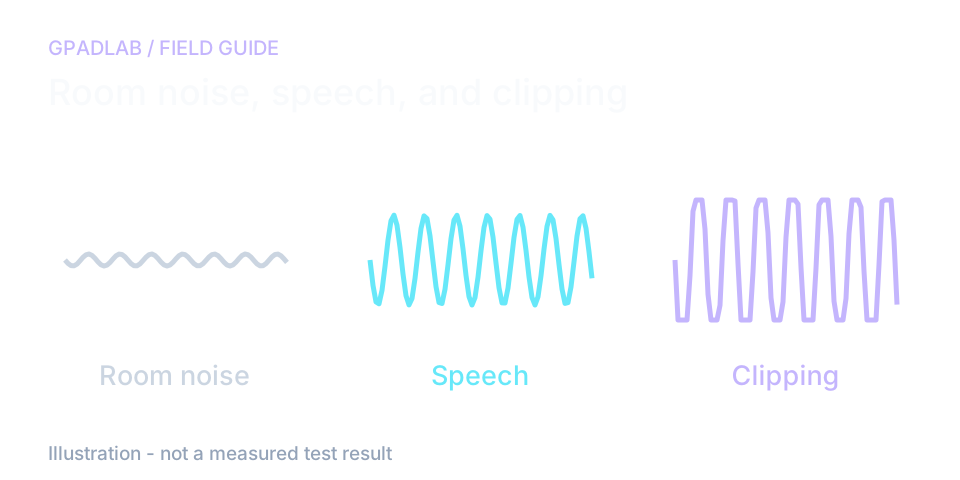
Choose the input you actually use
Select the same microphone you use for calls or streams. Speak from your normal distance. During the silent parts, leave the room as it usually is so the test includes your real background noise.
Change one setting and listen again
If speech is quiet, first check the selected device and your distance from it. If loud words clip, lower the input gain and repeat the same phrase.
A low noise reading with weak speech is not a good trade. Compare both. Browser noise reduction or gain control can differ from your call app, so finish with a short check in that app.
What the measurements mean
Four signals classified independently. The overall verdict is the worst of the four. dBFS = decibels relative to full scale; 0 dBFS is the digital maximum, negative numbers represent how much headroom you have.
| Signal | Verdict | Threshold |
|---|---|---|
| Speech RMS | Average volume during count | Healthy −20 to −10 dBFS · Functional −25 to −20 or −10 to −6 · Partial −30 to −25 or −6 to −3 · Faulty < −30 or > −3. Too quiet means your gain is set low; too loud means risk of clipping. |
| Peak (clipping) | Maximum sample during count | Healthy ≤ −6 · Functional ≤ −3 · Partial ≤ 0 · Faulty > 0 (clipping detected). Peaks above 0 dBFS cause harsh digital distortion in recordings and streams. |
| Noise floor | Worst RMS during silent phase | Healthy ≤ −50 · Functional ≤ −40 · Partial ≤ −30 · Faulty > −30. Noisy floors are usually caused by cheap mics, USB ground loops, or fans/HVAC near the mic. |
| Frequency bands | Bands with detectable signal during speech | Healthy 3/3 · Functional 2/3 · Partial 1/3 · Faulty 0/3. Missing the high band indicates a muffled mic or covered grille; missing low band indicates a tinny mic or aggressive high-pass filter. |
Compatible microphones
The microphone test works with any audio input your operating system recognizes. Common categories include:
Related diagnostics
Mic questions
When you grant microphone permission, the browser exposes your mic as a MediaStream. We feed that stream into the Web Audio API's AnalyserNode, which performs a Fast Fourier Transform to give us both time-domain samples (for volume and peak measurements) and frequency-domain samples (for spectrum analysis and band coverage detection). All processing happens in your browser tab - no audio data ever leaves your device.
Yes. We use only the Web Audio API's AnalyserNode, which produces statistical measurements - not raw audio data. No MediaRecorder, no WebSocket, no fetch upload. The MediaStreamTracks are explicitly stopped when the test completes, which is what turns off the browser tab's microphone indicator. You can verify this yourself by opening browser developer tools, Network tab, and watching for any uploads during the test - there are none.
dBFS stands for "decibels relative to full scale" - it measures audio level relative to the maximum digital amplitude. 0 dBFS is the digital ceiling (anything above clips), and negative numbers represent headroom. Healthy speech for streaming and recording sits between −20 and −10 dBFS, leaving room for sudden loud peaks without distortion. dBFS is the standard unit in digital audio, used by every DAW, OBS, Discord, and streaming platform.
The speech level may be usable while the room or recording path adds noise. Repeat with nearby fans or other sound sources reduced. Check the selected input and distance before buying equipment. Browser noise processing can also differ from the settings in your call or streaming app.
Missing the high band (4-20 kHz) usually means a muffled mic - covered grille, foam pop filter compressed against the capsule, or aggressive software low-pass filter. Missing the low band (<250 Hz) usually means an active high-pass filter is engaged (some USB mics ship with this on), or the mic is a phone-grade communications mic optimized for voice intelligibility rather than fidelity. Test with all software effects disabled to isolate hardware behavior.
Microphone problems on stream are the most common production issue - clipping, distortion, background noise, low volume - and they're also the most damaging to audience retention. A 10-second pre-stream mic test catches gain drift (preamp settings reset by software updates), level changes from different input sources, USB cable issues, and software conflicts. Twitch and YouTube creators who run a daily mic test before going live report significantly fewer reported audio issues from viewers.
Yes. If you can hear yourself in this test (volume meter responds to your voice) but cannot be heard in Discord or Zoom, the issue is application-specific - usually the wrong input device selected, the application's input volume set to zero, or an exclusive mode conflict where another app has taken the mic. If you fail this test entirely (no volume response), the issue is hardware or browser permission. The test isolates whether the problem is your mic or your app configuration.
No. The test is input-only - we read audio from your mic, we never play audio. Your speakers and headphones are not used during the test. The test does not generate signal of any kind. The only way to "damage" anything during this test is if your environment is so loud that the mic itself clips repeatedly, but even then the test reports clipping as a failure rather than causing damage.
How we measure microphone health
The browser captures the selected microphone with your permission. A ten-second sequence compares two silent periods with speech. The page checks signal level, peaks, noise, and frequency-band presence. Voice, room sound, and browser processing affect the results. The test code analyzes audio locally; it does not upload a recording.Dedicated methodology article not yet published; see the methodology hub for the methods currently available.