GuliKit KingKong 2 Pro Controller Test
The GuliKit KingKong 2 Pro controller test runs a full diagnostic on the controller that popularized Hall-effect sticks — verifying its electromagnetic Hall sticks, Hall ZL/ZR triggers, gyro, and sub-0.6% circularity in your browser. Connect over Bluetooth, the 2.4G dongle, or USB-C, press any button, and get a Controller Health Score graded S through F.
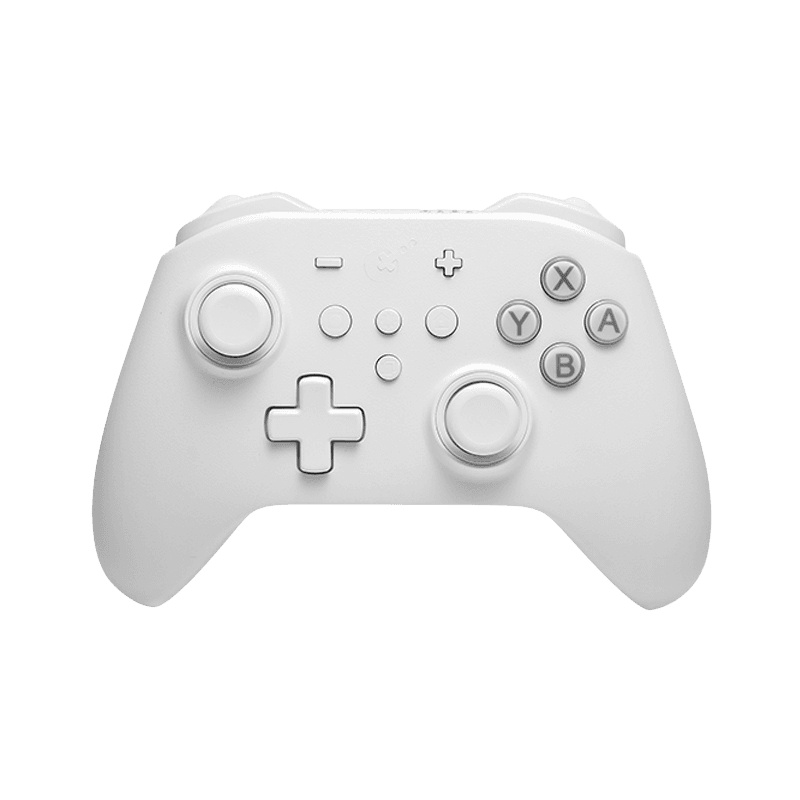
Full GuliKit KingKong 2 Pro diagnostic
The Controller Benchmark runs every subsystem on your KingKong 2 Pro — electromagnetic Hall sticks, deadzone, circularity, button response, Hall trigger range, rumble, gyro, latency, and connection stability — then produces a composite Controller Health Score. GuliKit cites circularity error under 0.6% (often 0.0-0.2%) after firmware, so the circularity and deadzone tests should score exceptionally clean.
GuliKit KingKong 2 Pro hardware specifications
| Specification | GuliKit KingKong 2 Pro |
|---|---|
| Connection | 2.4GHz Wireless Dongle, Bluetooth, USB-C |
| Button count | 16 |
| Analog stick type | Hall-effect (drift-resistant) |
| Gyroscope | Yes |
| Rumble / haptics | ERM motors (standard rumble) |
| Impulse triggers | No |
| Adaptive triggers | No |
| Touchpad | No |
| Built-in microphone | No |
| Built-in speaker | No |
| Back paddles | No |
| Battery life | ~25 hours |
| Weight | 230 g |
| Release year | 2022 |
| MSRP | $69.99 USD |
Recommended tests for GuliKit KingKong 2 Pro
Each test runs in your browser via the Gamepad API — no install, no account, no upload. Run any individually, or use the full benchmark above.
Stick Drift Test
Detect unwanted analog input at rest
Deadzone Test
Measure your stick’s deadzone radius
Hall Effect Checker
Identify Hall Effect vs potentiometer sticks
Circularity Test
Visualize stick travel as a circle
Trigger Pressure
Verify full analog range on triggers
Button Test
Check every button responds instantly
Vibration Test
Test both rumble motors independently
Gyro Test
Test 6-axis motion sensors
Polling Rate
Measure inputs reported per second
Known GuliKit KingKong 2 Pro issues
Recurring problems users report with this controller, ranked by frequency. Each links to a step-by-step fix guide.
- Common
Does not work on Xbox or PlayStation consoles
The KingKong 2 Pro supports Switch, Windows PC, Android, iOS, and macOS over Bluetooth, 2.4G, or wired — but it is not licensed for Xbox or PlayStation consoles and won't be recognized by either.
View fix guide - Occasional
Latency before firmware update
Early firmware shipped with noticeable input latency on some units. GuliKit's firmware updates (applied by holding APG then A while plugged in) resolve this — update before benchmarking if latency reads high.
View fix guide - Occasional
No rear paddles
Unlike the 8BitDo Ultimate or Pro 2, the KingKong 2 Pro has no rear paddles or extra mappable buttons — the front layout is all you get. Plan remapping around the standard inputs.
View fix guide
How to pair the GuliKit KingKong 2 Pro
Get your controller connected before running diagnostics — wired or wireless, mobile or desktop.
Pick a mode
The KingKong 2 Pro connects wired over USB-C, via Bluetooth, or through the included 2.4G dongle. The 2.4G dongle gives the lowest latency for PC.
Bluetooth or 2.4G
For Switch and mobile, enter Bluetooth pairing from the controller and select GuliKit in your device's menu. For PC, plug in the 2.4G dongle for automatic connection.
Update firmware first
If you haven't already, turn the controller off, plug it into a PC, press APG then A to expose the GuliKit drive, and apply the latest firmware — it improves circularity (to under 0.6%) and removes early latency.
Press any button to confirm in the browser
Browsers gate gamepad access behind a user gesture. Press any button on the KingKong 2 Pro to expose it to the Gamepad API, then run the benchmark or any individual test.
GuliKit KingKong 2 Pro vs the competition
Head-to-head reviews against the other controllers most buyers cross-shop.
- vs
GuliKit KingKong 3 Max
The KK3 line moves to TMR sticks and adds rear buttons and a charging dock; the KingKong 2 Pro keeps the original electromagnetic Hall sticks and amiibo NFC at a lower price.
- vs
8BitDo Ultimate
The 8BitDo Ultimate adds rear paddles and a charging dock; the KingKong 2 Pro counters with amiibo NFC, APG auto-pilot recording, and Hall triggers as well as Hall sticks.
- vs
Switch Pro Controller
The KingKong 2 Pro matches the Switch Pro's amiibo and gyro while replacing its drift-prone potentiometer sticks with drift-immune electromagnetic Hall sticks.
GuliKit KingKong 2 Pro definitions
Plain-language definitions for the terms used on this page. Each links to the full glossary entry with thresholds, mechanism, and FAQs.
GuliKit KingKong 2 Pro questions
Yes — patented electromagnetic Hall-effect sticks, contact-free and immune to drift. GuliKit was the first to ship Hall sticks in a wireless controller, and also uses Hall sensing for the ZL/ZR triggers.
No. The KingKong 2 Pro works on Switch, Windows PC, Android, iOS, and macOS, but it is not licensed for Xbox or PlayStation consoles.
The standard KingKong 2 Pro is Hall-effect (electromagnetic). GuliKit also makes a separate TMR variant, the KK2T, with TMR joysticks and replaceable stick caps — but the base KK2 Pro is Hall.
Very high. GuliKit cites circularity error under 0.6% — often 0.0-0.2% — after firmware updates, well ahead of the 10%+ seen on many mainstream pads. The exclusive FPS mode adds a 100% no-deadzone option.
Yes. The KingKong 2 Pro has a built-in NFC chip for amiibo, plus APG (Auto-Pilot Gaming) that records up to 10 minutes of inputs to replay automatically.
No. Unlike the 8BitDo Ultimate or Pro 2, the KingKong 2 Pro has no rear paddles — the front-facing layout is the complete input set.
Early firmware had input latency on some units. Plug the controller into a PC, press APG then A to mount the GuliKit drive, and apply the latest firmware — it removes the latency and improves circularity.
Get a full health report for your GuliKit KingKong 2 Pro
Run the Controller Benchmark to score every subsystem and generate a shareable Controller Health Score graded S through F.
Run the Benchmark