Controller Mapping Tool - Steam Input config designer
A controller mapping tool lets you design a custom button layout for your gamepad - useful when a button breaks, when you want a different layout for fighting games or accessibility, or when you need a consistent layout across games. Our free browser-based mapping designer is honest about what it does: the browser cannot inject inputs into other applications, so this tool generates a Steam Input config file that Steam loads to actually apply the remapping when you play. Click any button on the live diagram to assign it a new action, or drag-and-drop to swap two buttons. Save named presets to localStorage, then export the Steam Input VDF when you are ready. Works with any controller the browser recognizes as a standard gamepad. No download required.
Design and save a button layout
Connect your controller
Plug in or pair your controller and press any button. The diagram updates live as you press physical buttons, so you can verify the mapping by feel before exporting. Live preview is optional - you can design the mapping without a controller connected if you already know the layout you want.
Click a button to assign an action
Every button on the controller diagram is clickable. When you click, a picker dropdown appears with all available Steam Input actions grouped by category (face buttons, shoulders, center, sticks, D-pad). Pick the action you want this physical button to fire. The diagram updates immediately and the button is marked as remapped.
Drag-and-drop to swap two buttons
On desktop, drag any button onto another button to swap their assigned actions. This is the fastest way to do common layout changes - swapping X and Square on a PlayStation controller for example, or moving the A button to where the B button is for a left-handed player.
Save the layout as a named preset
Click Save Preset, give the layout a name, and it is stored in your browser via localStorage. The presets list at the bottom of the page lets you load any saved layout instantly. Useful when you have different mappings for different game genres - fighting, FPS, accessibility - and switch between them.
Export to Steam Input and load in Steam
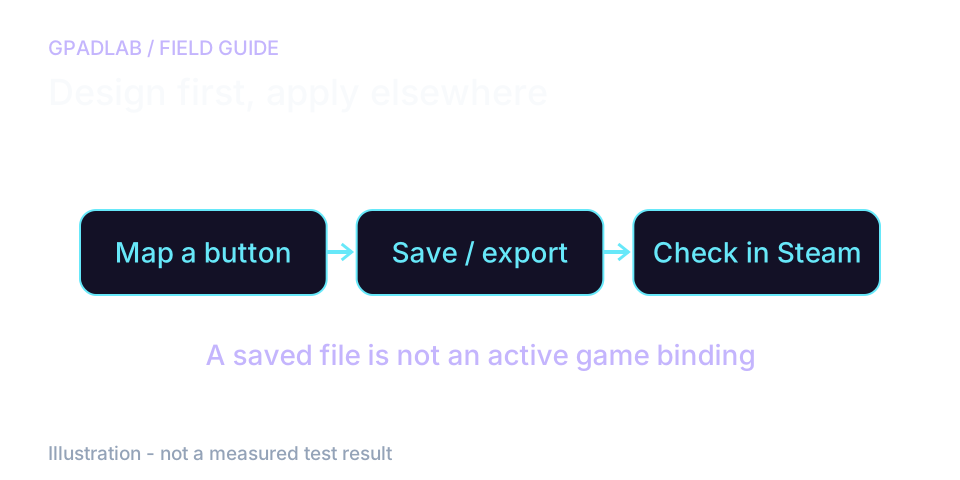
Export the VDF file and check whether your current Steam setup accepts it. Keep the original layout and verify each changed action in the game. The browser does not apply the remapping.
Plan a layout, then verify it where you play
Change one action first
Choose a spare button for the action you want to move. Check the diagram and save a named preset before making more changes.
The viewer inside this page still reads the original browser input. It is not proof that a new binding is active in a game.
Check the exported layout in Steam
The export creates a VDF file. Whether Steam accepts and applies it must be checked in your current Steam setup; a downloaded file alone does not establish a working remap.
Keep a copy of the original layout. Check the new action in the game's controller settings and then in play. The webpage cannot inject inputs into other apps or make a broken button register.
When this mapping designer
Three distinct audiences use mapping designers, each with different priorities. This tool handles all three through the same interface - click-to-assign for repair, drag-to-swap for layout changes, named presets for layout libraries.
| Use Case | How to Approach It | Why People Need It |
|---|---|---|
| Broken button repair | Remap the broken button to one you rarely use | Out-of-warranty controllers with a single failed button can stay playable for months or years by remapping the broken input. Example: L1 stops registering, remap to Square (which most games use less). Click the broken button on the diagram, pick the replacement action, export, load in Steam - done. |
| Accessibility layouts | Move all gameplay-critical actions to one hand | Players with limited mobility on one side benefit from layouts where all essential actions are reachable from a single hand. Swap face buttons and triggers, move D-pad navigation to face buttons, disable buttons that get bumped accidentally. Save as a named preset so the layout persists across sessions. |
| Fighting-game layouts | Reorganize face buttons to match arcade conventions | Fighting games traditionally use a four-button row (LP/MP/HP/Kick or similar). On a standard gamepad with diamond-arranged face buttons, this is awkward. Remap face buttons + bumpers to form a row of attacks that matches what the player is used to from arcade or fight stick play. Save per-fighting-game presets to switch between Street Fighter and Tekken layouts instantly. |
| Esports / per-game loadouts | Save a preset per game you play seriously | Competitive players often want different layouts for different games - sprint on a bumper for FPS, weapon switch on a stick click for hero shooters, build on D-pad for survival games. The named preset system lets you switch between layouts in seconds rather than re-designing each time. |
| Custom non-standard layouts | Map buttons in ways the game does not support natively | Some games offer no in-game remapping (looking at you, certain console ports). Steam Input runs before the game sees the controller, so a Steam Input layout overrides whatever the game thinks the controller is doing. Lets you fix games that ship with bad default mappings. |
Compatible controllers
The designer works with any controller the browser recognizes as a standard gamepad. The exported Steam Input config applies to whatever controller you have plugged in when launching a game through Steam.
Related diagnostics
Mapping Tool questions
No - and we are deliberately clear about this. The browser cannot inject inputs into your games. What this tool does is help you design a custom layout visually, then export a Steam Input config file. You load that file in Steam, and Steam does the actual remapping when you launch a game through it. The browser is the designer; Steam is the runtime. If you are not using Steam, you would need a different runtime remapper (reWASD, DS4Windows, JoyToKey) - we can copy your designed layout there manually, since there are only so many buttons.
Yes, and this is one of the most common use cases. Click the broken button on the diagram, pick the action you want it to take (typically a button you rarely press), then click Export. Load the config in Steam. The broken button now triggers whatever you mapped it to, and the original action stays accessible through the button you replaced. Buys you significant playable life from a controller that would otherwise be e-waste.
This page exports a VDF layout file. Verify the import or configuration workflow supported by your current Steam client before using it. Do not assume that downloading the file applies a remap. Keep your original layout and check the new action in the game.
Only if you launch the game through Steam. Add the game as a non-Steam game (Steam → Games → Add a Non-Steam Game), launch it from Steam, and Steam Input will intercept the controller and apply your remap. For games launched directly without Steam in the loop, you would need a different runtime tool - reWASD and DS4Windows are the common choices on Windows.
Yes. Use Save Preset to give the current layout a name. Saved presets appear at the bottom of the page and load with a single click. Up to 20 presets are kept in your browser via localStorage. Useful when you have different layouts for different game genres - save them once, switch instantly. Future versions will sync presets to a cloud account so the same layouts follow you across browsers.
When you remap physical button A to fire action B, physical button A now fires action B and stops firing its original action. If you also want the original action accessible, you need to remap a different physical button to take over its role. The "swap" interaction (drag one button onto another) handles this in one motion - the two buttons swap their assigned actions, so both actions are still reachable.
Steam Input passes through standard button and trigger inputs but does not currently expose the DualSense's adaptive trigger resistance levels or fine-grained haptic feedback in its config format. If you remap the DualSense L2 or R2 to something other than a trigger action, you may lose adaptive trigger functionality in some games. Standard rumble and analog trigger value continue to work.
Because "generic mapping file" puts the burden on the user to figure out how to use it - and most users will not bother. Steam Input is the broadest-compatibility runtime: it ships with Steam (used by over a hundred million people), works with any game launched through Steam, supports any major controller, and is genuinely free. Generating a config that works with the most-used remapper produces actual remapped controllers; generating a config that works with nothing produces zero. We pick the path that ships real outcomes.
How the mapping export works
The page stores a button-layout design and named presets in this browser. Export creates a VDF text file using its binding format. The browser does not apply the remap. Verify that the current Steam client accepts the file and that the desired action works in your game; export alone does not establish compatibility.Dedicated methodology article not yet published; see the methodology hub for the methods currently available.