Gamepad Viewer - controller overlay for streams
A gamepad viewer is a streamer-facing overlay that renders your controller inputs as a live on-screen diagram, so viewers can see what buttons you are pressing and how you are moving the sticks. Our free browser-based gamepad viewer drops straight into OBS as a Browser Source: pick a PlayStation, Xbox, Switch, or generic layout, choose an accent color and scale, then copy the configured URL into OBS - your settings are baked into the URL so the source stays consistent across stream restarts. Works with any controller the browser recognizes as a standard gamepad. No download required.
Build your on-stream controller view
Connect your controller
Plug in your controller or pair it via Bluetooth, then press any button. The browser detects standard gamepads automatically, and the connection status appears at the top of the page along with the detected controller identifier.
Pick a layout
Choose PlayStation, Xbox, Switch, or Generic. Press each face button and move both sticks to check the diagram. The Switch Pro controller has offset sticks; a layout picture does not change the input mapping.
Customize accent color and scale
Seven accent themes (violet, cyan, fuchsia, emerald, amber, rose, white) determine the highlight color for pressed buttons and active sticks. The scale slider runs from 0.5x to 2.0x so the overlay matches your stream layout. Adjustments apply instantly to the live preview.
Copy the OBS Browser Source URL
The OBS panel generates a configured URL with your settings baked into the query string and ui=off applied so the page renders only the controller, no controls, on a transparent background. Click Copy, paste into OBS as a Browser Source, set the width and height to match the controller diagram, and the overlay is live.
Stream restarts pick up the same settings
Because the configuration lives in the URL, OBS opens the same overlay the same way every time the scene activates. No re-setup needed. To change themes or layouts later, edit the URL or revisit this page, adjust, and copy the new URL into OBS.
Set up a controller overlay that fits your stream
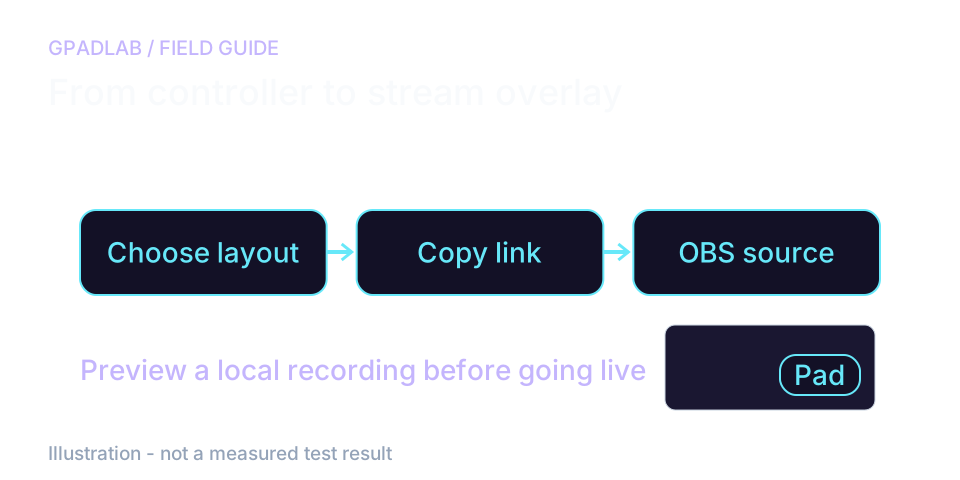
Check the labels before copying the link
Choose PlayStation, Xbox, Switch, or Generic. Press each face button, move both sticks, and pull the triggers. A layout changes the picture; it does not remap your game.
Pick a color that stands out over the game and a size that leaves important on-screen information clear.
Add the configured URL to OBS
Copy the Browser Source URL into an OBS Browser source. Start at 800 by 500 pixels and adjust the viewport if the diagram is clipped. Test presses in a short local recording.
If you change the viewer settings later, copy the new URL into OBS. The existing source does not follow edits made in another browser tab.
A second PC needs its own input path
The viewer reads a controller available to the machine running it. A console capture card or a link opened on a second PC does not relay controller inputs.
No GPADLAB download is needed. OBS loads the configured page, but controller access still depends on the browser source and your setup.
What each URL parameter controls
All settings are URL query parameters so the overlay is fully configurable through the address bar alone - useful for streamers using OBS scene templates or scripting setups.
| Parameter | Values | What It Controls |
|---|---|---|
| layout | ps5 · xbox · switch · generic | Chooses the controller diagram and its labels. PlayStation, Xbox, Switch, and Generic are available. Check every button and stick against the picture; the selected layout does not remap the input. |
| theme | violet · cyan · fuchsia · emerald · amber · rose · white | Accent color for pressed buttons, active stick positions, and trigger fills. Choose the theme that matches your stream branding. |
| scale | 0.5 to 2.0 (decimal) | Visual scale multiplier for the controller diagram. 1.0 is the base size. Useful for sizing the overlay to fit alongside camera and gameplay in your stream layout. |
| bg | transparent · dark · light | Background mode. Transparent is the default for OBS Browser Sources (lets your gameplay or scene show through). Dark and light are useful when using the page standalone in a browser as a controller checker. |
| ui | on (default) · off | Whether the configuration controls are visible. The OBS Browser Source URL uses ui=off automatically so the overlay shows only the controller, no controls. Click Preview OBS Mode on the page to see how this looks. |
Layouts match common controllers
Pick the layout that matches the physical controller you stream with. Any standard gamepad works with any layout, but the diagram looks most natural when paired with the controller it represents.
Common troubleshooting steps
Related diagnostics
Gamepad Viewer questions
Configure the layout, theme, and scale on this page until the overlay looks right. Click the Copy button on the OBS Browser Source URL panel. In OBS, add a new source, choose Browser, paste the URL into the URL field, set the width to 800 and height to 500 (or whatever matches your scaled diagram), and check "Refresh browser when scene becomes active" so the overlay reloads cleanly each time. The source is now ready - your controller inputs will render live whenever the scene is active.
Use the configured OBS link with ui=off and bg=transparent. Check that you copied the whole URL and reload the source. The overlay mode should show only the controller. If it does not, report the URL settings and OBS version; a scene refresh setting is not a transparency fix.
No. GPADLAB's gamepad viewer runs in your browser. To use it in OBS, copy the configured link into a Browser source. You do not need a separate GPADLAB app or browser extension. Controller access still depends on the browser source and your setup.
The current controls expose layout, theme, scale, and background - the four settings that cover the vast majority of streamer needs. Custom positioning of buttons, custom labels, and recording overlays are intentionally out of scope for the MVP so the tool stays focused and fast. If a custom feature is missing that you would actively use, send feedback - we prioritize streamer-facing additions in the public roadmap.
The browser must expose usable button and axis values. Choose a layout and check each control. Generic shows numbered buttons but cannot correct a nonstandard mapping. If the diagram does not match your input, do not assume it represents the controller accurately.
It does not - the Switch layout intentionally labels face buttons B, A, Y, X in the order they are physically printed on a Nintendo controller (B at bottom, A at right, Y at left, X at top). This is the opposite of Xbox's A/B/X/Y ordering. The diagram matches your controller's physical labels, which is what your stream viewers will see when watching you play.
Yes. Streamlabs, XSplit, and any other broadcast software that supports a Browser Source URL works the same way - paste the configured URL, set dimensions, done. The overlay also works as a standalone controller checker in any browser tab; click Preview OBS Mode to see the bare overlay without the controls panel.
The viewer reads and draws controller input locally. Its code does not upload or save a replay of your presses. The configured link stores display settings, not input history. A stream or recording made in OBS can of course capture the visible overlay.
How we render the controller overlay
The viewer reads the connected controller and draws buttons, sticks, and trigger values each browser frame. Layout, theme, and scale are stored in the configured URL. OBS loads that URL as a separate browser source. The viewer does not remap input or relay it between computers.Dedicated methodology article not yet published; see the methodology hub for the methods currently available.